Item Card: Business Central
We can open Item Card typing ‘Items’ in the search bar and open some of the items from the list.
General Tab
On this tab, we can find only informative fields for item demand and this fields are not configurable:

- In the Description field, enter the name of the item.
- In the Blocked field, specify if transactions with the item should be blocked, for example, because the item is in quarantine.
- Specify if the item card represents a physical item (Inventory) or a service (Service).
- In the Base Unit of Measure field, select the unit in which the item is handled by default, for example, PCS if you store a physical item in pieces. This field is required.
- In the GTIN field, enter the number that identifies the item in connection with electronic document sending and receiving. GTIN stands for Global Trade Item Number. It is the newest standard for global item identification and also functions as a common standard for older standards, such as EAN and UPC.
The Inventory field specifies the item’s current inventory as the sum of items on stock plus items on purchase orders. Choose the field to view the history of negative and positive transactions that make up the inventory.
- Select the Automatic Ext. Texts check box to always insert the item’s extended description on document lines.
Item Category Code: Look up and select from the predefined codes (or define new codes). Item category codes consist of a combination of posting groups (the three fields in the upper-right corner
of the Invoicing FastTabs). When you use an item category code, you do not have to enter posting groups every time that you set up an item card.
Inventory

Shelf No.: Enter a text value to name the place in inventory where you keep the item. However, this field is not dynamically updated by the system. The shelf number is displayed in the Picking List report.
Created from Nonstock Item: This field indicates that the item card was originally a nonstock item.
Search Description: The item name that you wrote in the Description field is entered here as a default. However, you can change it if you want to use a different name when you search for the item.
- Inventory: Specifies how many units of the item are on inventory. The program automatically calculates and updates the contents of the field, using the Quantity field in the Item Ledger Entry table.
- Qty. on Purch. Order: Shows how many units of the item are inbound on purchase orders, meaning listed on outstanding purchase order lines. The field is automatically updated based on the Outstanding Quantity field in the Purchase Line table.
- Qty. on Prod. Order: Shows how many units of the item are allocated to production orders, meaning listed on outstanding production order lines. The field is automatically updated based on the Remaining Quantity field in the Prod. Order Line table.
- Qty. on Component List: Shows how many units of the item are allocated as production order components, meaning listed under outstanding production order lines. The field is automatically updated based on the Remaining Quantity field in the Prod. Order Component table.
- Qty. on Sales Order: Shows how many units of the item are allocated to sales orders, meaning listed on outstanding sales orders lines. The field is automatically updated based on the Outstanding Quantity field in the Sales Line table.
- Qty. on Service Order: Shows how many units of the item are allocated to service orders, meaning listed on outstanding service order lines. The field is automatically updated based on the Outstanding Quantity field in the Service Line table.
- Qty. on Job Order: Shows how many units of the item are allocated to jobs, meaning listed on outstanding job planning lines. The field is automatically updated based on the Remaining Qty. field in the Job Planning Lines window.
- Qty. on Assembly Order: Shows how many units of the item are allocated to assembly orders, which is how many are listed on outstanding assembly order headers. The field is automatically updated based on the Remaining Quantity field in assembly order headers.
- Qty. on Asm. Component: Shows how many units of the item are allocated as assembly components, which means how many are listed on outstanding assembly order lines. The field is automatically updated based on the Remaining Quantity field in assembly order lines.
- In the Stockout Warning field, specify if a warning is displayed when you enter a quantity on a sales document that brings the item’s inventory below zero.
- In the Prevent Negative Inventory field, specify if you can post a transaction that will bring the item’s inventory below zero.
- In the Net Weight field, specify the net weight of the item, for example, to complete customs documents, waybills, and so on.
Cost & Posting

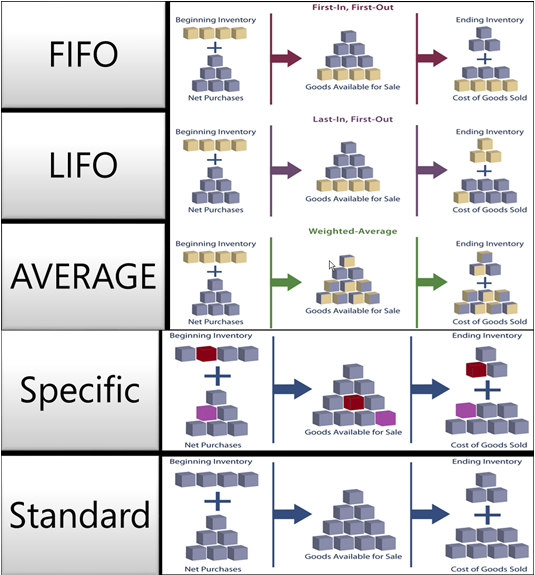
Costing Method Select the way that the item's cost flow is managed. The most common method is
FIFO, which means First-in- First-out. With this method, the items that were purchased first are always sold first. The FIFO costing method values the inventory decrease by using the value of the first inventory increase. The costing method determines how costs are calculated and how inventory is valued. Other options are LIFO, specific, average, and standard.
Costing Method
|
Specify how the item’s cost flow is recorded and whether an actual or budgeted value is capitalized and used in the cost calculation.
The field is set to Standard and cannot be changed.
|
Standard Cost: For items where the selected Costing Method is Standard, enter the manually calculated standard cost.
Unit Cost: Specifies cost per unit of the item.
When you create a new item, enter the cost for each unit that you expect to pay for the item. Later, the program updates the field so that it contains the item's current (possibly adjusted) cost. This
field always reflects the most recent direct unit cost of the item on inbound transactions and related outbound transactions.
Indirect Cost % Enter a percentage that corresponds to the indirect costs (freight and warehouse handling, for example) associated with the purchase of the item.
Indirect Cost %
|
Specify the percentage of the item's last purchase cost that includes indirect costs, such as freight associated with the purchase of the item.
|
Last Purchase Cost: specifies the most recent direct unit cost of the item.
Last Purchase Cost
|
Enter your initial purchase price for the item.
The field is updated with the item’s most recent purchase cost as invoiced by your vendor in the last posted purchase invoice for the item.
|
Net Invoiced Qty. This field shows the quantity of invoiced purchases minus the quantity of invoiced sales.
Cost is adjusted Select this check box to indicate if the item's unit cost is adjusted for different unit costs between inbound and outbound item transactions over time.
Cost is Posted to G/L: This status field relates to the concept of cost reconciliation.
Default Deferral template:
Posting Details
Gen. Prod. Posting Group: Unless you use an item category code, you must look up from this field and select a posting group from the predefined posting groups. When you post transactions that involve this item, the program uses this code in combination with a general business posting group code
in the General Posting Setup. page to determine the income statement account to post to.
Gen. Prod. Posting Group
|
Specify the item’s trade type to link transactions made for this item with the appropriate general ledger account according to the general posting setup.
The combination of the general product posting group that is assigned to your items and the general business posting group that is assigned to your customers determines which general ledger accounts the sales invoice entries are posted to.
This field is required.
|
Tax group code: Unless you use an item category code, you must look up from this field and select a
posting group from the predefined posting groups. When you post transactions that involve this item, the
program uses this code in combination with a VAT business posting group code in the TAX Posting Setup page to determine tax calculation and which tax account to post to.
VAT Prod. Posting Group
|
Specify the item’s VAT specification to link transactions made for this item with the appropriate general ledger account according to the VAT posting setup.
This field is required.
|
Inventory Posting Group: Unless you use an item category code, you must look up from this field and select a posting group from the predefined posting groups. Inventory posting groups specify the type of inventory and are then combined with location codes in the Inventory Posting Setup page. Each combination is then mapped to the inventory accounts, WIP account, and other variance accounts that
relate to inventory in the chart of accounts.
Inventory Posting Group
|
Specify the item’s inventory type to link business transactions made for the item with the appropriate inventory account in the general ledger according to the inventory posting setup.
This field is required.
|
Tariff No.
|
Specifies a code for the item's tariff number for use in INTRASTAT reporting.
|
Price and sales

Allow Invoice Disc. Select this check box if you want the program to allow an invoice discount when the
item is sold.
Item Discount Group: This field relates to the Sales Line Pricing functionality.
Field
|
Description
|
Unit Price
|
Specify the price that you want to sell the item at.
The value that you enter may be modified according to your selection in the Price/Profit Calculation field.
Depending on the option that
you selected in the
Price/Profit Calculation
field, you can enter a
percentage (and the program
calculates the Profit %). Or,
you can see the percentage
the program has calculated:
Unit Price = Unit Cost : (1 -
Profit).
The value in this field is
carried to sales lines as the
Unit Price Excl. VAT field.
However, you can always
overwrite it if you want to sell
at another price.
|
Unit Price Excl. VAT
|
Specifies the unit price excluding VAT
|
Price/Profit Calculation
|
Specify if the profit percentage or unit price are calculated, or if neither calculation is performed. The following options exist.
|
Profit %
|
Specify the profit margin that you want to sell the item at.
The value that you enter may be modified according to your selection in the Price/Profit Calculation field.
|
Allow Invoice Disc.
|
Specify if the item should be included in the calculation of an invoice discount on documents where the item is traded.
|
Item Disc. Group
|
Specify an item group code that can be used as a criterion on the Sales Prices and Sales Line Discounts FastTab to grant a discount.
|
Sales Unit of Measure
|
Specifies unit of measure when you sell the item
|


How to: Set Up Invoice Discount Terms [Allow Invoice Disc.]
To set up invoice discount terms for purchases
- In the Search box, enter Vendors, and then choose the related link.
- Select a vendor with an invoice discount code, and then, on the Home tab, in the Manage group, choose Edit.
If there are several vendors with this code, it does not matter which vendor you choose.
- On the Navigate tab, in the Purchases group, choose Invoice Discounts.
- In the Currency Code field, enter the code for the currency for which you want to set up invoice discount terms. Leave the field blank if you want to set up invoice discount terms in LCY.
- In the Minimum Amount field, enter the minimum amount that an invoice must have to be eligible for a discount. The minimum amount is in the currency represented by the code in the Currency Code field on the same line.
- In the Discount % field, enter the percentage rate to be used.
You can set up as many lines as necessary if you will receive different discount percentages for different invoice amounts and for different currencies. Optionally, you can enter an amount in the Service Charge field. The service charge is also in the currency represented by the code in the Currency Code field on the same line.
- Repeat these steps for the remaining vendors.
Replenishment Tab

Replenishment System: On this tab, we need to configure Replenishment System field. Specifies the type of supply order that is created by the planning system when the item needs to be replenished. The following options exist:
- Purchase - to supply the item with a purchase order.
- Prod. Order - to supply the item with a production order.
- Assembly - to supply the item with an assembly order.
Lead Time Calculation: We also need to configure Lead Time Calculation field. This field specifies a date formula for the amount of time that it takes to replenish the item. This field is used to calculate the date fields on order and order proposal lines.
When the Lead Time Calculation field is filled in several windows, it is prioritized as follows:
- Item vendor card
- SKU card
- Item card
After we configure this field, we have to configure one of these fields’ areas (depends of previous inventory increase setup):
- Purchase
- Production
- Assembly
There are next fields placed in three areas:
Purchase
- Vendor No.: Specifies the code of the vendor from whom this item is supplied by default. The contents of the field can be used on requisition worksheets and reports. It is not necessary to fill in this field.
- Vendor Item No.: Specifies the number that the vendor uses for this item. You can enter a maximum of 20 characters, both numbers and letters. By entering the vendor's item number so that it can be used on purchase orders, for example, you can reduce possible uncertainty about the identity of the item.
- Purch. Unit of Measure: Contains the unit of measure code the program must use when you purchase the item. It is automatically filled in, when you fill in the Base Unit of Measure. If you do not use the base unit of measure, or if you delete the purchase unit of measure on the item card, the Unit of Measure Code field will not be filled out on the purchase line.
Production
- Manufacturing Policy: Defines whether additional orders for any related components are calculated. This includes production orders that are created manually or from sales orders and production order proposals that are generated by planning calculations. You can select from the following manufacturing policy options:
- Make-To-Stock: Considers the first level of the BOM and allows only one item per production order. A make-to-stock item is produced to inventory levels. These are typically standard items with a relatively short manufacturing lead time or items that are used as required subassemblies for other items. You generally use this manufacturing policy with fixed reorder quantity or maximum quantity reorder policies.
- Make-To-Order: Explodes the BOM and creates an additional production order or production order proposal line for each level in the BOM structure where that item's manufacturing policy has also been defined as make-to-order. If you make multilevel production orders, then the manufacturing policy for the parent item and the component items at all levels must be make-to-order. An automatic reservation is created between the requirement and the corresponding replenishment order proposal. This preserves the customized information on the relevant orders and links them for inventory and costing. You generally use this manufacturing policy with order or lot-for-lot reordering policies. A related policy on the item card that implies order-to-order binding is the Order reordering policy.
- Routing No.: Specifies the number of the routing. This field is mandatory, if item is production item.
- Production BOM No.: Specifies the number of the production BOM. This field is not be necessary filled.
- Rounding Precision: Defines how calculated consumption quantities are rounded when entered on consumption journal lines. Quantities less than 0.5 will be rounded down. Quantities equal to or greater than 0.5 will be rounded up. You can set the field to round to the nearest decimal (maximum 6 decimal places) or to the nearest number divisible by any whole or decimal number.
Examples:
- 0.01 Round to two decimals
- 0.05 Round to a number divisible by 0.05
- 1.00 Round to a whole number (no decimals - divisible by 1.00)
- 10.00 Round to a whole number (no decimals - divisible by 10.00)
Changing the field only affects future consumption calculations. If you increase the rounding precision of an item that exists on open consumption journal lines, then you must refresh the production order and at least the component need, and you must recalculate the consumption journal line. However, if you decrease the rounding precision, then the open consumption journal line is unchanged, and you do not have to refresh or recalculate them.
- Flushing Method: Specifies the method that is used to calculate and handle the consumption of the item as a component in production processes. When production operations are integrated with warehouse processes, either by bins or by directed put-aways and picks, the bin from which the components are consumed is the bin that is defined on each production order component line. All required components must be available in that bin. Otherwise, the manual or flushed consumption posting is stopped for that component. You can select from the following flushing method options:
- Manual: Requires that you manually enter and post consumption in the consumption journal.
- Forward: Automatically posts consumption according to the production order component lines. By default, the posting of component consumption occurs when you change the status of a production order to Released. However, if you use the Routing Link Code field on production order component lines, then posting occurs per operation when the operation starts. For forward flushing, the operation-specific posting that you obtain with routing link codes is based on the expected quantity that is defined on the component line.
- Backward: Automatically calculates and posts consumption according to the production order component lines. By default, the calculation and posting of component consumption occurs when you change the status of a released production order to Finished. However, if you use the Routing Link Code field on the production order component lines, then calculation and posting occurs when each operation is finished. Backward flushing and routing link codes can be combined so that the quantity that is flushed per operation is proportional to the actual output of that operation.
- Pick + Forward: Same as for Forward flushing method, except it only works for locations that use directed put-away and pick. Consumption is calculated and posted from the bin that is defined in the To-Production Bin Code field on the location or machine center after the component has been picked from the warehouse. If a component is set up with the Pick + Forward flushing method, then it cannot have a routing link code to an operation that is set up with the forward flushing method. The component would then be automatically flushed when the operation starts, which makes it impossible to request the pick activity.
- Pick + Backward: Same as for Backward flushing method, except it only works for locations that use directed put-away and pick. Consumption is calculated and posted from the bin that is defined in the To-Production Bin Code field on the location or machine center after the component has been picked from the warehouse.
Overhead Rate: Enter an amount to cover the indirect costs for the item.
- Scrap %: Specifies the percentage of the item that you expect to be scrapped in the production process. It is used to calculate unit prices and net requirements. If the item is a parent, then the scrap percentage represents scrapped output before putting away in inventory. It the item is a component, then the scrap percentage represents scrapped consumption, when picking from inventory. If you define a scrap percentage for a component item, it means that more components will be withdrawn from inventory than the production order calls for. Scrap defined on component items increases the quantity picked for consumption. It does not increase the expected output quantity of the parent item.
- Lot Size: Specifies how many units of the item are processed in one production operation by default. You can modify the lot size on individual routing lines or on individual production order routing lines (operations). The lot size modifies the run time that you enter on routing lines by multiplying the value in the Run Time field with the lot size to reflect that it takes, for example, twice the time to process two pieces per operation.
If the item routing includes fixed costs such as setup time, then the value in this field is used to calculate the standard cost price and distribute the fixed costs of manufacturing the item. To limit the amount of planning suggestions for insignificant changes to existing orders, use the Default Dampener Quantity field, which is a percentage of the lot size.
Assembly
- Assembly Policy: Specifies which default order flow is used to supply this assembly item. The following options are available:
- Assemble-to-Stock: Assembly orders for the item are created as supply orders that are intended for inventory. They are either created manually, such as to build kits for a seasonal campaign, or automatically through the planning system to supply for demand or according to inventory replenishment.
- Assemble-to-Order: Assembly orders for the item are created in response to a sales order line and are linked so that the order processor can customize the assembly components and resources from the sales order.
Planning Tab
This is the most important tab for item planning. On this tab, we need to configure next fields:

- Reordering Policy: Specifies the reordering policy. When quantities must be replenished, the reordering policy is used to calculate the lot size per planning period (time bucket). You can select from the following reordering policy options:
- Fixed Reorder Qty.: Uses the quantity that is specified in the Reorder Quantity field as the standard lot size. The quantity may be adjusted to meet additional requirements or the specified inventory level. The Reorder Quantity field is used for calculating the overflow level.
- Maximum Qty.: Uses the quantity that is specified in the Maximum Inventory field to determine the maximum lot size. The quantity may be adjusted to meet additional requirements or the specified inventory level. The Maximum Inventory field is used for calculating the overflow level.
- Order: Generates an order for each requirement and does not use the planning period. An automatic reservation between the requirement and the corresponding replenishment order proposal is created. This preserves the customized information on the relevant orders and links them for inventory and costing. Creating a manual reservation is an alternate method for setting aside items in inventory and designating them for use in a specific order.
- Lot-for-Lot: Generates an order proposal with a quantity that meets the sum of the requirements that are due in the planning period.
- Blank: Does not calculate order proposals for this item. You will manually plan for this item.
Important: If you change to a different reordering policy option, then some planning parameter fields that were previously active and contain the most recently used values may be disabled. Planning calculations will ignore these values.
If you are planning for demand at a location that differs from the Components at Location field and you are not using SKU, then the Lot-for-Lot reordering policy option with blank planning parameters is used. Items that use the Order reordering policy option still use the order reordering policy,
- Reserve: Indicates whether the program will allow reservations to be made for this item. The field contains one of the following options:
- Never: It is not possible to reserve the item.
- Always: The program does not reserve the item automatically. You can reserve the item manually.
- Optional: The program always reserves the item.
- Order Tracking Policy: Specifies if and how order tracking entries are created and maintained between supply and its corresponding demand. Select one of the following options:
- None: Specifies that neither tracking entries nor action messages are created.
- Tracking Only: Specifies that the system will create tracking entries for this item, but will not issue any action messages.
- Tracking & Action Msg.: Specifies that the system will create and maintain tracking entries and will also issue action messages for this item. This option is also referred to as Dynamic Order Tracking.
- Stockkeeping Units Exist: Specifies that a stockkeeping unit (SKU) exists for this item.
- Dampener Period: Specifies a period of time during which you do not want the planning system to propose to reschedule existing supply orders forward. The dampener period limits the number of insignificant rescheduling of existing supply to a later date if that new date is within the dampener period. The dampener period function is only initiated if the supply can be rescheduled to a later date and not if the supply can be rescheduled to an earlier date. Accordingly, if the suggested new supply date is after the dampener period, then the rescheduling suggestion is not blocked. This field is enabled if Reordering Police is set as Order or Lot-for-Lot.
- If the lot accumulation period is less than the dampener period, then the dampener period is dynamically set to equal the lot accumulation period. This is not shown in the value that you enter in the Dampener Period field.
- Dampener Quantity: Specifies a dampener quantity to block insignificant change suggestions for an existing supply if the quantity by which the supply would change is lower than the dampener quantity. If the suggested change in quantity is higher than the dampener quantity, then the suggestion is not blocked. If this field is empty, then the value in the Default Dampener Quantity field in the Manufacturing Setup window applies.
This field is disabled if Reordering Police is set as Order.
- Critical: Specifies if the item is included in availability calculations to promise a shipment date of a parent item to be sold. This field does not influence the order promising functionality if the item itself is to be sold. It only affects items that are components of the item to be sold.
- Safety Lead Time: Defines a date formula to indicate a safety lead time that can be used as a buffer period for delays in the production, assembly, or purchase replenishment lead time. For example, if a vendor often delivers late, then define a safety lead time for items from this vendor so the planning system can compensate for delays. When calculating order and order proposal lines, the safety lead time is added to the lead time for both forward- and backward-scheduled orders. For transfer orders, an item's safety lead time is not included directly in the calculation of the transfer order receipt date. However, safety lead time can influence the receipt date of a transferred item because it can affect any replenishment purchase or production order at the transfer-from location before the transfer starts.
If no value is specified in the Safety Lead Time field, then any value that is defined in the Default Safety Lead Time field applies.
Purchase Order Time Calculation

Production Order Time Calculation

Sales Order Time Calculation

Transfer Order Time Calculation

- Safety Stock Quantity: Defines a quantity of stock that you want to have in inventory to protect against fluctuations in demand and supply during the replenishment lead time for the item. The Safety Stock Quantity field is used in the following ways for planning calculations when the projected available balance is below the safety stock quantity:
- An order proposal that is backward scheduled from the due date of the requirement that caused the deficit in the projected available balance is created.
- The order proposal quantity brings the projected available balance up to at least the level that is specified in the Safety Stock Quantity field.
The safety stock quantity must always be below the reorder point. If you leave the field blank, then the safety stock quantity for the item is set to zero. If you enter a negative number in the field, then the value is ignored.
Lot-for-Lot Parameters
This field is enabled only if Reordering Police is set as Lot-for-Lot, except Include Inventory field.
- Include Inventory: Includes inventory in the projected available balance when replenishment orders are calculated. By default, the field is selected. You cannot change the contents of this field. Inventory is generally used to fulfill outstanding requirements. The following conditions change the behavior of this field:
- If you specify a lot-for-lot reordering policy, then you can change the contents of this field.
- If you specify an order reordering policy, then the field is blank. You cannot change the contents of this field.
- Lot Accumulation Period: Defines a period in which multiple demands are accumulated into one supply order when you use the Lot-for-Lot reordering policy. The Lot Accumulation Period field contributes to define the company's time reorder cycle in lot-for-lot planning together with the Rescheduling Period field. From the date of the first demand, all demands are accumulated in the following lot accumulation period into one supply order, which is placed on the date of the first demand. Demand that is outside the lot accumulation period is not covered by the supply order.
- Rescheduling Period: Defines a period within which any suggestion to change a supply date always consists of a Reschedule action and never consists of a Cancel + New action. The Rescheduling Period field contributes to define the company's reorder cycle in lot-for-lot planning together with the Lot Accumulation Period field. The total rescheduling period is one rescheduling period before the existing supply date until one rescheduling period after the existing supply date. If a suggested new supply date that is forward or backward in time is within the rescheduling period, then the suggestion is to reschedule. If a suggested new supply date is outside the rescheduling period, then the suggestion may be to cancel and create a new supply order.
Reorder-Point Parameters
This field is enabled only if Reordering Police is set as Fixed Reorder Qty. or Maximum Qty.
- Reorder Point: Specifies a quantity of stock that sets the inventory level below which you must replenish the item. You can equate the reorder point quantity to anticipated demand during the replenishment lead time. The Reorder Point field plays the following role in the planning calculations when the projected inventory is equal to or below the reorder point:
- NAV will create an order proposal that is forward scheduled from the date of the requirement that caused the deficit in the projected available balance, unless a supply order has already been placed.
- The order proposal quantity will, at minimum, bring the projected available balance up to the level that is specified by the Reorder Point field. The final order proposal quantity may be further adjusted due to additional requirements within the time bucket, the effects of the reordering policy, and the quantity modifier fields: Minimum Order Quantity, Maximum Order Quantity, and Order Multiple.
- Reorder Quantity: Specifies a standard lot size quantity to be used for all order proposals. The program will use this quantity at the minimum, although it may increase the final order quantity to meet additional requirements or the specified inventory level. This field is used only with reordering policy Fixed Reorder Quantity. It is disabled for all other reordering policy options. Note that for optimal results, you should set up this field so that the reorder point is higher than safety stock and smaller than the reorder quantity.
- Maximum Inventory: Specifies a quantity that you want to use as a maximum inventory level. The program uses the maximum inventory minus the safety stock quantity to calculate order proposal quantities. This field is used only with reordering policy Maximum Qty.. It is disabled for all other reordering policy options. For optimal results, you should set up this field so that the reorder point is smaller than the maximum inventory and larger than the safety stock.
- Overflow Level: Specifies a quantity by which you allow projected inventory to exceed the reorder point before the system suggests to decrease existing supply orders. This field is useful if you want the supply plan to remain unchanged after minor changes, such as cancellation of insignificant demand quantities. The overflow level is ignored if it is lower than the suggested supply quantity. The overflow level only works for items that use the Maximum Qty. or Fixed Reorder Qty. reordering policies.
- Time Bucket: Specifies a time period that defines the recurring planning horizon of the item when you use Fixed Reorder Qty. or Maximum Qty. reordering policies. The time bucket defines the frequency for checking if the projected inventory reaches or goes below the reorder point. The planning system uses the time bucket in the following ways:
- To group requirements that are due in the time bucket.
- To potentially reschedule a replenishment order that is due in the time bucket to fulfill a requirement.
- To determine when the reorder point has been crossed.
If you leave the field blank, then requirements that share the same date are grouped together.
Order Modifiers
This field is disabled only if Reordering Police is set as Order.
- Minimum Order Quantity: Defines a minimum allowable quantity for an item order proposal. Use, for example, if the item is delivered in a fixed transportation unit, such as a container, which you want to be fully utilized. Once the need for replenishment is detected and the lot size has been adjusted to meet the specified reordering policy, the quantity is increased to meet the minimum order quantity that you define for the item.
- Maximum Order Quantity: Specifies a maximum allowable quantity for an item order proposal. Use, for example, if the item is delivered in a fixed transportation unit, such as a container, which you want to be fully utilized. Once the need for replenishment has been detected and the lot size has been adjusted to meet the specified reordering policy, the quantity is decreased if it is required to meet the maximum order quantity that you define for the item.
- Order Multiple: Defines a parameter that is used by the planning system to modify the order quantity of planned supply orders. The order multiple is an integer that defines the quantity to which an order quantity is rounded up. The modified order quantity is then divisible by the order multiple.
Item Tracking

The Item Tracking FastTab governs the use of serial and lot numbers assigned to the item for tracking purposes.
Item Tracking Code
Specifies the item tracking policies that are set up on the Item Tracking Code Card. The table contains information about the serial and lot number series used, when to require item tracking, and when to require specific inventory application. It also offers simple functionality for handling the expiration and warranty of items carrying item tracking.
Once ledger entries are recorded for an item with the SN Specific Tracking field or the Lot Specific Tracking field selected, you cannot remove the check mark.
Lot Nos.
Contains the code for the number series that will be used when assigning lot numbers.
If you want to use more than one number series for lot numbers, you can set up a relationship between the relevant series in the No. Series Relationship table. This will allow you to use one code to represent two or more number series.
Serial Nos.
Specifies a number series code to have the program automatically assign consecutive serial numbers to items produced. The serial numbers will have produced when you post the items from an output journal.
Choose the field to see a list of available number series codes.
Expiration Calculation
Contains the formula for calculating the expiration date on the item tracking line. To use this field, the item must have an item tracking code.
The program uses the document date as the basis for calculating the expiration date.
The expiration calculation formula can contain a maximum of 20 characters consisting of numbers and letters that the program recognizes as abbreviations for time specifications.
Warehouse

• The Warehouse FastTab holds information about how the item is received, stored, and shipped in special warehouse activities.
Special Equipment Code: Contains the code of the equipment that warehouse employees must use when handling the item.
Put-away Template Code: Contains the code of the put-away template by which the program determines the most appropriate zone and bin for storage of the item after receipt. If you have not set up a put-away template for the item or stockkeeping unit, the program will use the put-away template of the location.
Put-away Unit of Measure Code
Contains the code of the item unit of measure in which the program will put the item away.
Microsoft Dynamics NAV always refers to the put-away unit of measure code when it suggests where to put items away in the warehouse. First Microsoft Dynamics NAV looks for a put-away unit of measure for the stockkeeping unit. If the field is empty or if Microsoft Dynamics NAV is putting away an item and not a stockkeeping unit, the program uses the item put-away unit of measure. If there is no item put-away unit of measure, the Microsoft Dynamics NAV uses the put-away unit of measure of the posted warehouse receipt line or the registered internal put-away line.
For example, when you receive pallets and the put-away unit of measure is pieces, the Take line of the put-away will be in pallets and the Place line will be pieces.
Phys Invt Counting Period Code
Contains the code of the counting period that indicates how often you want to count the item in a physical inventory.
Last Phys. Invt. Date
Contains the date on which you last posted the results of a physical inventory for the item to the item ledger.
Last Counting Period Update
Contains the last date on which you calculated the counting period. It is updated when you use the function Calculate Counting Period.
Next Counting Period
Specifies the next period in which this item must be counted. The field is updated when a warehouse physical inventory has been performed and registered for the item within the previous counting period or when you call the Calculate Counting Period function.
Identifier Code
Contains a unique code for the item in terms that are useful for automatic data capture. You can define one identifier code for each combination of item, variant code and unit of measure code.
Use Cross-Docking
Specifies if the item can move directly from receiving to shipping or production without first being stored in the warehouse.
When you select this check box, the item is only enabled for cross-docking. Additional setup of the location is required before the item can be cross-docked.
When you cross-dock items, you expedite received items through the put-away and pick processes and limit the physical handling of the items. You can cross-dock items for shipments and production orders.
Comments
Post a Comment